How do you share a recorded road trip as a link?
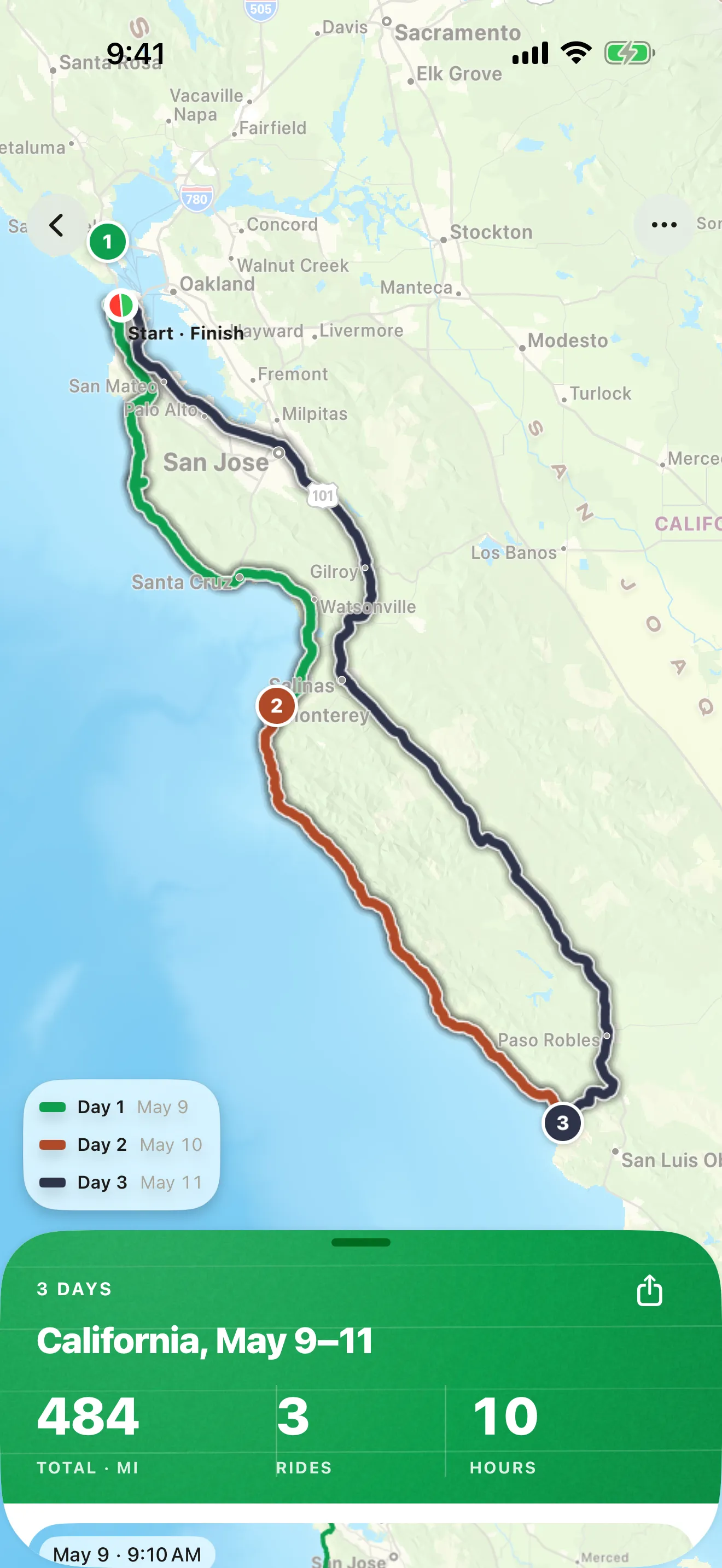
Open the journey in Roveri, choose Share journey, and tap Create link. You get one address that opens the whole trip on a web page: every day on one map in its own colour, with the trip’s distance and time, in any browser, with nothing to install on the other end.
This is the trip you drove, not where you are now. Most “share my route” tools share your live location while you travel. A Roveri link is made after the driving, from the recorded days, so the family sees the route you took without following you in real time. Sharing a link is free.

Live location or a recorded trip?
Two different things go by “sharing a route”:
- Live location — Find My, Google Maps’ trip progress and similar apps show where you are right now, while you are on the road. It is the right tool for “are you nearly there?”.
- A recorded trip — what you send afterwards: the roads you actually took, day by day, with the distance and the time. It is the right tool for “show me where you went”.
Roveri does the second. It does not share where you are while you drive.
Share the whole trip, step by step
The days need to be a journey first: see how to keep a road trip day by day. Then:
- Open the journey from the History tab.
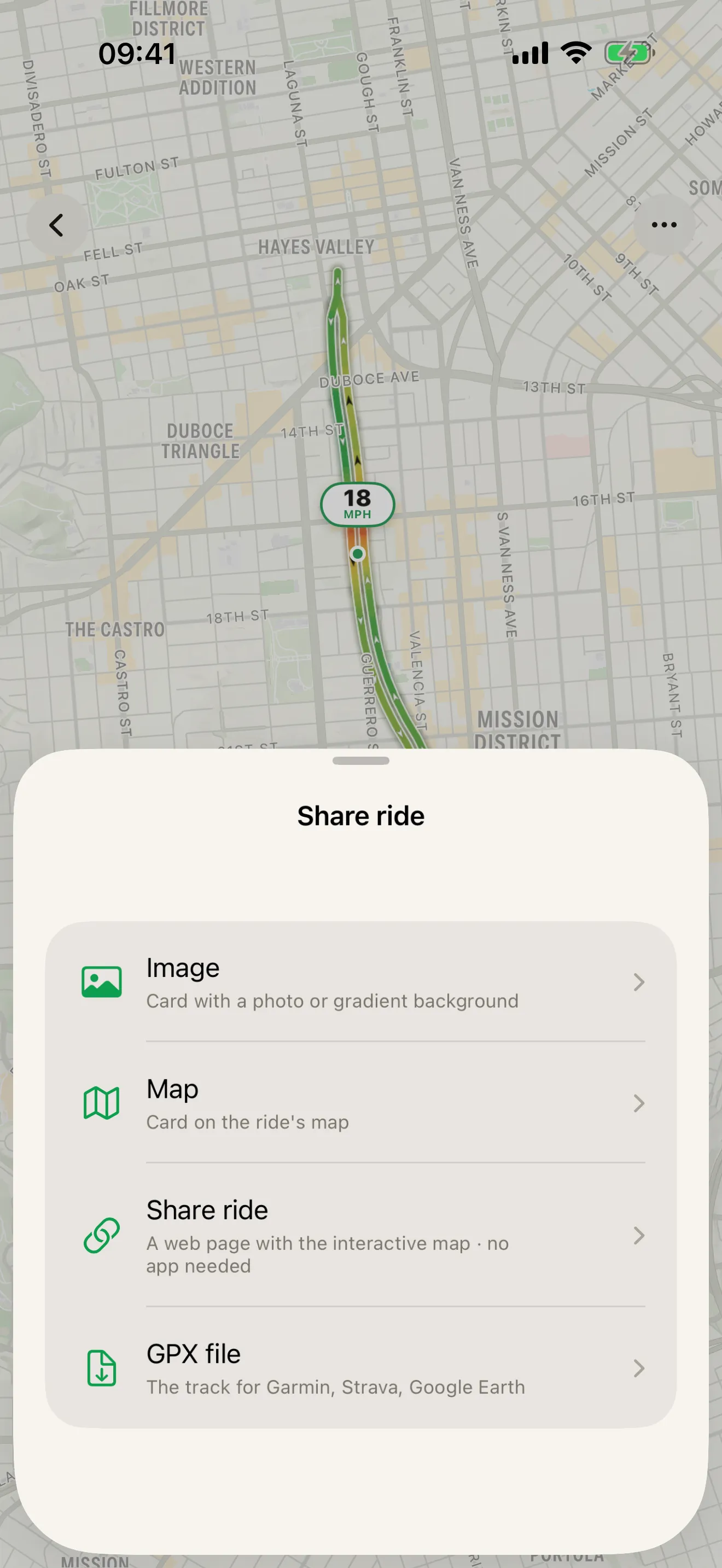
- Tap the share button on the trip’s green panel, or tap the ••• button and choose Share…. The Share journey sheet opens.
- Choose Share journey, the choice described as a web page with every day on one map · no app needed.
- Check the privacy settings (below). They apply to every day of the trip.
- Tap Create link. Roveri uploads the trip and gives you its address.
- Tap Share… to send it through Messages, WhatsApp or mail, or Copy link to paste it into the family group yourself.
A journey link needs at least two drives that still have a route after the privacy settings.
What the family sees
They tap the link and a page opens at roveri.app, on a phone or a laptop:
- the whole trip on one map, each day drawn in its own colour, with a legend naming the days and their dates, the same colours as in the app;
- the trip’s figures: distance, moving time, climb and average speed;
- no overnight lines: each day is drawn separately, so the map shows the roads you drove and nothing between the evening stop and the next morning.
There is nothing to install and no account to make. It reads like a postcard that happens to be a map.
Privacy for a whole trip
A trip has more starts and finishes than a single drive, and some of them are a home or a friend’s house. The settings sit on the same screen, before the link exists:
- Hide route ends is on to begin with and cuts 500 m off the start of every day. Under Ends to hide choose Start, Finish or Both, and under Trim distance 500 m, 1 km, 2 km or 5 km. Hiding both ends keeps the hotels off the map while the roads between them stay on.
- Hide top speed is on to begin with too, and removes the number and the speed colouring from the page.
- A day too short for the trim is left off the link, and the sheet names it, for example Day 2 hidden: too short to trim. The rest of the trip is still shared.
The sheet also says it plainly: the link can’t be guessed, but anyone who has it can open the page, and search engines can find it once it’s posted publicly. Your notes are never uploaded, and no name or account is attached. What is uploaded and where it is stored is set out in the privacy policy.
Changing your mind
- Change a setting on a trip you already shared and the page follows it at the same address within seconds. If that update fails, or the link was made in an earlier session, the screen says the live page still has the old settings and offers Update page.
- Stop sharing on the same screen takes the page down for everyone who has the link. Sharing the trip again makes a new link, never the same one.
- Ungrouping the journey, or deleting one of its drives, also stops the link.
- A day added after you shared the trip is not on the link at first; Roveri says so when you add it, and Share journey then offers Update page, which adds it at the same address.
FOUR WAYS TO SHARE
A picture for the feed, a link for the family.
The share sheet offers four choices: a picture card over a photo, a card on the map, the web page, and the GPX file. A journey's sheet, titled Share journey, has the same four. The picture and the link are free; the GPX file is part of Roveri Pro.
- Image or Map: a picture of the trip for a story or a group chat
- Share journey: the web page with every day on one map
- GPX file: the whole trip as one file, with Roveri Pro
Sending one drive or ride rather than a whole trip, with its privacy, revocation and how long a link lives in more detail? That is the riding guide: how to send someone a link to your motorcycle ride. For one ride as a picture for the feed, see how to share a motorcycle ride as a card. For the trip as a file, see how to export a whole road trip as one GPX file.
Common questions
Does the link show where I am right now?
No. A Roveri link shows a trip you already recorded: the roads, the days and the figures. It is made after the driving and does not follow your live location.
Does my family need the app to open the link?
No. The link opens an ordinary web page in any browser, on a phone or a laptop, with nothing to install and no account.
Can I hide where we stayed each night?
Yes. Hide route ends cuts the start, the finish or both of every day, by 500 m up to 5 km, so the places you slept stay off the map while the roads stay on. A day too short for the trim is left off the link, and the sheet names it.
Is sharing a road trip as a link free?
Yes. Making the journey and sharing it as a picture or as a link are free. Adding a GPX download to the page, or exporting the trip as a GPX file, is part of Roveri Pro.
How do I stop sharing the trip?
Open the journey, go back to Share journey and tap Stop sharing. The page stops working for everyone you sent it to, and sharing again makes a new link.
Sharing a trip as a link is part of Roveri, the iPhone app that records every drive and ride (iOS 18.6 or later), free to download with an optional Pro tier. Read the full, code-verified fact sheet on the Roveri press page, or get Roveri on the App Store.