How to open a GPX file on iPhone
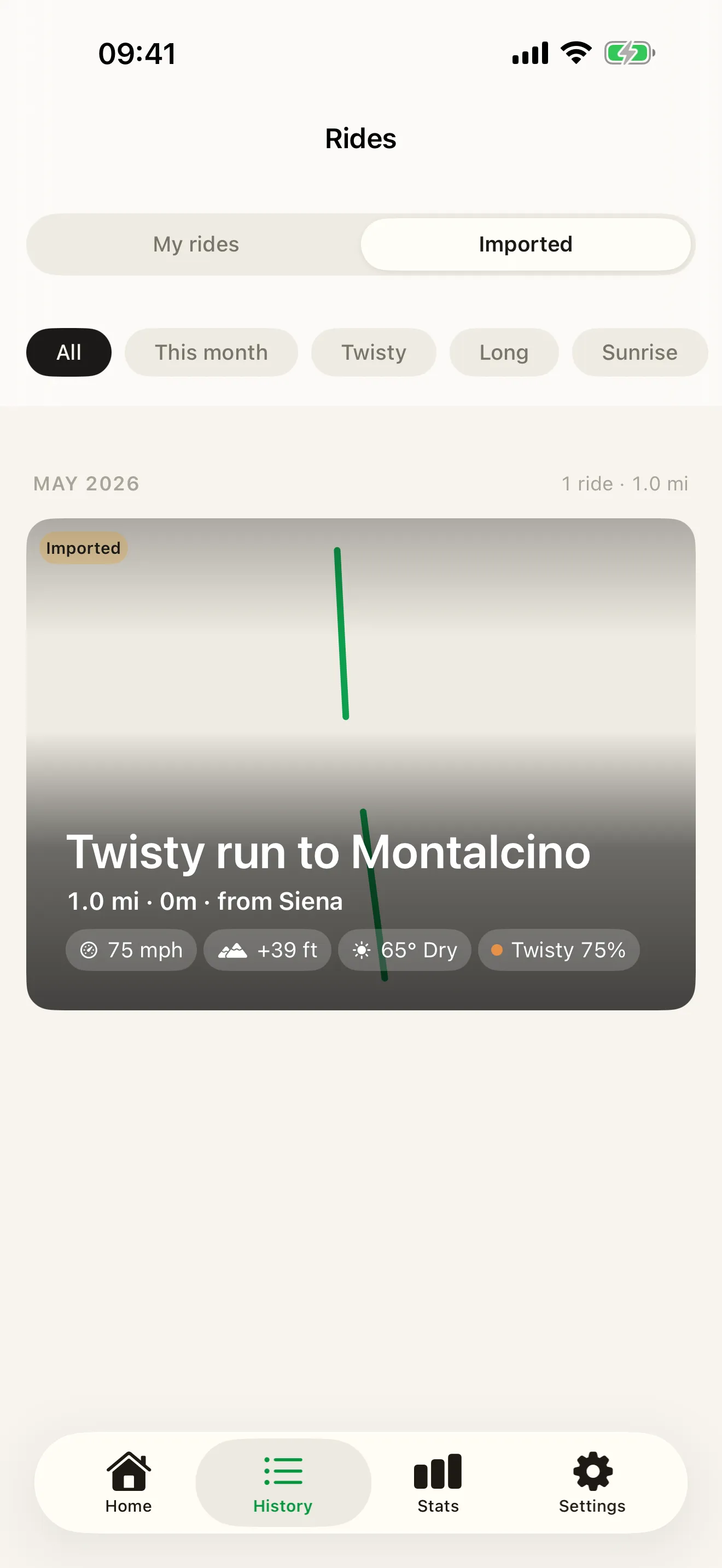
Open the .gpx file and pick Roveri: the file is read on your iPhone and the ride lands in its own Imported section, kept apart from the rides you record yourself. It arrives with the route on the map, the distance and the climb — and where the file carries real timestamps, the duration, the speeds and the weather of that day.
Your totals, your records and your Coverage Atlas are drawn from the rides you recorded yourself, so a file from another app leaves all three exactly as they were. An import is a copy Roveri holds on the iPhone you opened the file on, and one gesture takes it back out again. Opening a file is part of the free app.

Two ways in
A file. Any .gpx on the phone will do — one sitting in Files, an
attachment in Mail or a message, a track AirDropped from a laptop, or a file
handed over by another riding app’s own share sheet. Tap it, pick Roveri, and
the app reads it on the spot and takes you to the new ride in History. There is
no account and no sign-in anywhere in that path, and the file is not uploaded
anywhere to be opened: the reading of it, the route on the map and the ride’s
own numbers are all worked out on the device. Files up to 10 MB are accepted, which is a long
recording rather than a modest one — a whole-journal dump from another app is
refused outright rather than opened half-read.
A ride link. The other door is a roveri.app ride link. Open one on an iPhone that has Roveri installed and it goes to the app rather than the browser, and the ride it points at is imported the same way a file is.
Either door, opening the same ride twice does not give you two of it. A file is identified by its contents — mailed to yourself, saved to Files, then opened from both places is one ride — and a link by the id in the address.
Where imported rides live, and why they sit apart
History grows a switch. The first import adds a My rides / Imported segment to the top of the Rides screen; every import lands under Imported and nothing else does. Remove the last one and the segment disappears again, which is the honest shape: the app does not carry a second tab for a feature most riders open once.
What the totals count. Your distance, your records and your Coverage Atlas are built from the rides you recorded yourself, so a file from another app leaves all of them exactly as they were. That separation is the whole point rather than a limitation of it: a season of somebody else’s riding — or your own riding from an app you have left — reads as an archive you can open and scroll, not as kilometres you rode this year. The numbers that move are the ride count and the month’s distance in the month header inside Imported.
An import does not sync. An import is stored on the iPhone you opened the file on. Your own recorded rides keep syncing through your private iCloud; the Imported section sits beside that journal rather than inside it — the same separation that keeps imports out of your totals — so a file you opened on one phone does not travel to your other devices. If you want the same archive on an iPad, open the same files there; they are still yours, and opening them twice costs nothing.
The ride screen, a few doors lighter. An imported ride opens the same detail screen your own rides use: the same map with its lanes and direction arrows, the same numbers, the same weather card, under an Imported ride badge. What is deliberately withheld is everything that would speak for a ride that is not yours. The note stays read-only, because the ride is not yours to annotate. “Personal best” and the climate rollup are left off rather than computed — the only fleet they could be measured against is the Imported section itself, and a record set against a stranger’s file is a plausible-looking number that means nothing. And the share door is closed altogether: an imported ride cannot be sent on as a card, as a link or as a GPX file, because every one of those outputs would re-publish somebody else’s route under your privacy choices. The one destructive door reads Remove from Imported, not Delete: it takes Roveri’s copy out, and leaves the file, the link and your journal untouched.
What survives a foreign file
A GPX file from another app carries the track and little else agreed upon, so Roveri rebuilds the ride from what is actually in the file:
- The route, point by point, drawn on the map exactly as recorded.
- Distance and climb, computed from the track itself.
- Duration, average and top speed, where the points carry real times. Where the file records position but no speed, each point’s speed is worked out from the ground it covered between one timestamp and the next.
- Pauses, where the file writes them as separate track segments — the stop stays a stop instead of a straight line across the map.
- Air temperature, from a file carrying Garmin’s
TrackPointExtensionreadings — the same extension Roveri’s own export writes. - The weather and the places, looked up for that day and that route once the ride is in: the temperature range, the conditions, and the towns that name the ride.
Weather has a floor: 1 August 2021. That is as far back as the historical weather service Roveri uses reaches. A ride on or after that date, in a file with real timestamps, gets the weather of the day it was ridden written onto it. An older ride keeps its route, its distance and all its numbers and carries no weather card — there is nothing to look up, and inventing it would be worse than leaving it blank.
A Roveri file comes back whole. A .gpx this app exported
itself carries a block of its own
alongside the standard track: the ride’s own numbers, its weather series, and
the road type and lane of every point. Re-open one — from a backup, from a
laptop, from a friend who rides the same roads — and the ride arrives as it
left, rather than as a track to be re-derived.
Keep the original. An import is Roveri’s copy of a file you still hold. If you ever reinstall the app, your own journal comes back from iCloud and the Imported section starts empty, so the file or the link is what you would open again — which is also why removing an import is a small act rather than a final one.
A file with no clock
Plenty of .gpx files are routes rather than recordings: a line someone drew,
exported to be followed. A file like that has coordinates and no times, and
Roveri opens it as what it is — the route on the map, with its distance and its
climb — while duration, average speed and top speed stay at zero.
That is a decision, not a gap. A track with no clock still has to be laid out in some order to be read at all, and dividing real ground by that placeholder would produce a duration and a top speed that look measured and are inventions of the import. The same rule covers the awkward middle case: a file where only some points carry a time is treated as clock-less as a whole, because real timestamps interleaved with filler make a number that cannot be told from a measurement. A file that names no day is filed under the day you opened it, and it carries no weather and no place names — nothing in it says where the weather should be fetched for, or when.
Leaving another app
This is the page for the rider who has decided to move. The shape of it is the same wherever you are coming from: export your rides from the app that holds them — as GPX, whatever tier that app puts its export behind — then open each file here. What you get is a readable archive in Imported, with the routes, the numbers and, where the files have real timestamps, the weather of each day. The rides you record from here on are your journal, and your totals start from your own riding rather than from an import.
Two things worth doing in the other order people usually do them. Export before you cancel anything, while the rides are still reachable. And check what the file actually carries: an app that exports a route plan rather than a recorded track gives you the line but not the day. If you are still choosing, the comparisons lay out what each app keeps — Roveri and REVER, Roveri and Calimoto, Roveri and RideLog.
IMPORTED
A section of its own, beside your journal.
Imports land under Imported in History, badged on every card. The route, the numbers and the weather of the day are all there — and your own totals, records and Coverage Atlas stay drawn from the rides you recorded yourself.
- Open a .gpx from Files, Mail, AirDrop or another app — or a roveri.app ride link
- The file is read on the iPhone; no account, no sign-in
- Remove from Imported takes the copy out and leaves the file and your journal alone
Common questions
Will imported rides change my totals?
They leave them as they are. Your distance, your records and your Coverage Atlas are drawn from the rides you recorded yourself, and an imported file is held in a section of its own beside that journal. The numbers an import moves are the ride count and the month’s distance in the month header inside Imported.
Which apps’ files work?
Any app or GPS unit that exports a recorded track as GPX 1.1 — an open, published format rather than one app’s private file. Roveri reads the track points, the elevation and the times, plus Garmin’s TrackPointExtension air temperature where a file carries it. A file holding only waypoints or a drawn route with no track has no recorded line to open. Roveri’s own exported files come back whole, with the numbers and weather it wrote into them.
What if the file has no timestamps?
The ride opens as a route: the line on the map, with its distance and its climb. Duration, average speed and top speed stay at zero rather than being derived from a placeholder clock, and the ride carries no weather, since nothing in the file says which day to look up. It is filed under the day you opened it.
Do imported rides sync to my other devices?
They stay on the iPhone you opened the file on. Your own recorded rides keep syncing through your private iCloud; the Imported section sits beside that journal rather than inside it — the same separation that keeps imports out of your totals. To have the same archive on an iPad, open the same files there.
Can I delete an import?
Yes, in one gesture: swipe the card in the Imported list, or open the ride and choose Remove from Imported. It removes Roveri’s copy — the file or the link is still yours to open again, and your own journal is untouched. Remove the last import and the Imported segment disappears until the next one.
Does it use my data allowance?
Opening a file barely touches the network: it is read, drawn and measured on the phone. A file with real timestamps then prompts two small lookups — the weather of that day and the names of the places you passed — and a file without them prompts neither. Opening a roveri.app ride link downloads that one ride, which is about the size of a web page.
Opening a GPX file is part of Roveri, a riding journal for iPhone (iOS 18.6 or later), free to download with an optional Pro tier. Importing a file, your full history, the route map with its lanes and arrows and sending a ride as a link are free; Pro adds the Coverage Atlas, a per-ride elevation profile, the climate measured along your route, GPX export, Where to ride, and the rest of the monthly Rewind story. Read the full, code-verified fact sheet on the Roveri press page, or get Roveri on the App Store.